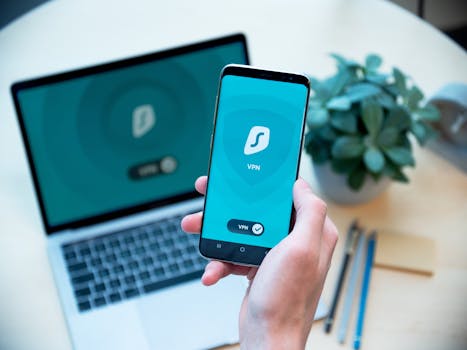
Staying safe and private online is more important than ever, with cyber threats, mass data collection, and regional content restrictions becoming daily concerns. A Virtual Private Network (VPN) is one of the most effective tools to protect your information, access global content, and secure your internet connection. But to truly benefit, you need to know how to set up a VPN on the devices you use every day. Whether you’re a tech novice or a seasoned pro, this step-by-step guide will walk you through installing and configuring a VPN on major platforms: Windows, macOS, Android, iOS, and even routers.
Why Setting Up a VPN is Essential for Modern Internet Users
Security and privacy are no longer luxuries—they’re necessities. According to a 2023 report by Statista, more than 1.2 billion VPN users worldwide rely on VPNs to shield their digital lives. With cybercrime damages projected to reach $10.5 trillion annually by 2025, securing your internet connection is more critical than ever.
VPNs create an encrypted “tunnel” for your data, making it unreadable to hackers, ISPs, and even government agencies. They also let you bypass geo-blocks, giving you access to content, services, and prices otherwise unavailable in your region. But all these benefits depend on setting up your VPN correctly on your preferred devices.
.png)
Choosing the Right VPN and Setup Method
Before you jump into setup, you’ll need to pick a VPN provider that suits your needs. Some of the top VPNs in 2024, such as NordVPN, ExpressVPN, and Surfshark, offer easy-to-use apps and broad device compatibility. But the setup process can vary based on:
- Your device type (PC, smartphone, router) - Desired features (split tunneling, kill switch, server locations) - Manual vs. app-based installationHere is a comparative overview of VPN setup options across devices:
| Device | App-Based Setup | Manual Setup | Best For |
|---|---|---|---|
| Windows PC | Yes | Yes (via built-in client or OpenVPN) | Ease, customization |
| macOS | Yes | Yes (via built-in client or Tunnelblick) | User-friendly, advanced configs |
| Android | Yes | Yes (via system settings or OpenVPN app) | Quick setup, mobility |
| iOS | Yes | Yes (via system settings or OpenVPN app) | On-the-go privacy |
| Router | Rare | Yes (manual firmware config) | Protecting all home devices |
Step-by-Step: Setting Up a VPN on Windows PCs
Setting up a VPN on Windows is straightforward, especially with a dedicated VPN app. Here’s how to do it:
Using a VPN App (Most Common): 1. Choose and subscribe to a reputable VPN provider. 2. Download the VPN app from the provider’s website (never third-party stores). 3. Install the app and launch it. 4. Log in with your credentials. 5. Select a server location (e.g., US for Netflix, UK for BBC iPlayer). 6. Click “Connect.” You’ll see a confirmation once the VPN is active. Manual Setup via Windows Built-in Client: 1. Go to Settings > Network & Internet > VPN. 2. Click “Add a VPN connection.” 3. Enter your VPN provider’s details (server address, connection type, credentials). 4. Save and connect.Pro Tip: If you want more control, use OpenVPN with configuration files provided by your VPN service. This method supports advanced features but requires more technical know-how.
Example: In 2023, over 35% of VPN users in the US relied on Windows devices for secure browsing, according to GlobalWebIndex.
How to Install a VPN on macOS Devices
Apple computers are known for their security, but a VPN adds an essential extra layer. Here’s how to secure your Mac:
Using a VPN App: 1. Subscribe to a VPN provider and download their macOS app. 2. Open the installer and follow on-screen instructions. 3. Launch the app, log in, and select a server. 4. Click “Connect” to activate your encrypted session. Manual Setup via macOS Built-in VPN Client: 1. Go to System Settings > Network. 2. Click the “+” button to add a new VPN connection. 3. Select VPN type (IKEv2, L2TP, or PPTP—note: PPTP is outdated and insecure). 4. Fill in the server address, remote ID, and authentication settings as provided by your VPN. 5. Apply settings and connect.Advanced Users: Consider using Tunnelblick or Viscosity (third-party OpenVPN clients) for more customization.
Fact: A 2022 Apple security update highlighted that while macOS is robust, VPN encryption remains vital for public Wi-Fi and international travel.
Setting Up a VPN on Android Smartphones and Tablets
With over 72% of global smartphone users on Android, mobile VPN setup is critical for privacy on the go.
Using a VPN App: 1. Download your VPN provider’s app from the Google Play Store. 2. Open the app, log in, and allow necessary permissions. 3. Tap to select a server location. 4. Press “Connect”—your phone’s status bar will show a key icon when VPN is active. Manual Setup via Android System Settings: 1. Go to Settings > Network & Internet > VPN. 2. Tap “Add VPN.” 3. Enter the required details (server, type, credentials). 4. Save and connect.OpenVPN for Android: For more advanced users, download the “OpenVPN for Android” app and import configuration files from your VPN provider.
Example: In a 2023 survey, 41% of Android VPN users cited public Wi-Fi security as their main reason for using a VPN.
VPN Setup on iOS: iPhone and iPad Explained
iPhones and iPads are user-friendly, and so is setting up a VPN. Here’s how:
Using a VPN App: 1. Download your VPN’s official app from the App Store. 2. Launch and log in. 3. Select a server and tap “Connect.” 4. Accept the prompt to add VPN configurations (iOS will request permission). Manual Setup in iOS Settings: 1. Go to Settings > General > VPN & Device Management > VPN. 2. Tap “Add VPN Configuration.” 3. Choose the protocol (IKEv2, IPSec, or L2TP). 4. Enter server, remote ID, and credentials. 5. Save and connect.OpenVPN Option: Install the OpenVPN Connect app and import configuration files if your provider supports it.
Fact: According to a 2023 DataProt study, nearly 20% of VPN users in North America access VPNs primarily from iPhones.
How to Secure Your Entire Home: VPN on Routers
Installing a VPN on your router extends protection to every device on your network, from smart TVs to gaming consoles. This is an advanced setup but offers comprehensive security.
What You Need: - A VPN-compatible router (such as Asus, Linksys, or Netgear). - A VPN subscription that supports router installations. Steps: 1. Log in to your router’s admin interface (usually via a browser at 192.168.1.1). 2. Find the VPN section (varies by brand). 3. Enter the VPN configuration details from your provider (server address, protocol, credentials). 4. Save settings and reboot the router.Some VPN providers offer pre-configured routers or detailed setup guides for brands like DD-WRT or Tomato.
Example: Protecting your home router with a VPN ensures every device, even those that don’t support VPN apps (like smart fridges or IoT devices), benefit from encrypted traffic.
Common Setup Issues and Troubleshooting Tips
While VPN setup is usually smooth, occasional hiccups can occur. Here are the most common issues and fixes:
1. Connection Fails: - Double-check your username and password. - Try changing the VPN server location. - Ensure your internet connection is stable. 2. Slow Speeds: - Connect to a server closer to your actual location. - Switch VPN protocols (OpenVPN UDP is often faster than TCP). - Disable unnecessary background apps using bandwidth. 3. App Not Working: - Update your device’s OS and the VPN app. - Restart your device. - Uninstall and reinstall the VPN app. 4. Can’t Access Certain Sites: - Some sites block known VPN IPs. Try switching servers or using an obfuscated server (if your provider offers it).Tip: Leading VPN providers offer 24/7 customer support and detailed troubleshooting guides—use them if you run into persistent problems.
Final Thoughts on Setting Up VPNs Across Devices
Setting up a VPN on your devices is a smart, proactive step to safeguard your privacy, access global content, and secure your data—whether you’re at home, at work, or on the move. With VPN usage projected to rise steadily (Statista forecasts a 7.1% annual market growth through 2028), knowing how to configure your VPN puts you ahead in the digital security game.
By following the simple steps outlined for each platform, anyone can enjoy the protection and freedom VPNs deliver. Take the time to choose a reputable provider, install correctly, and stay updated on best practices. The peace of mind and access you gain are well worth the effort.