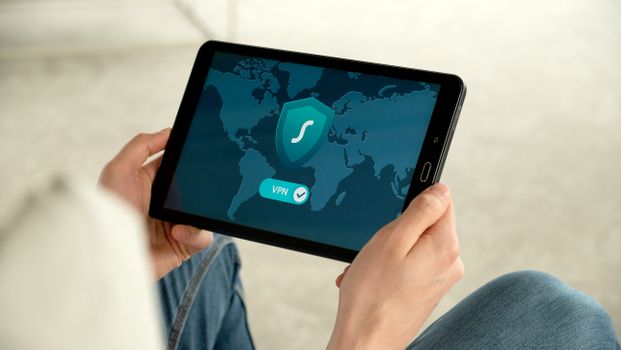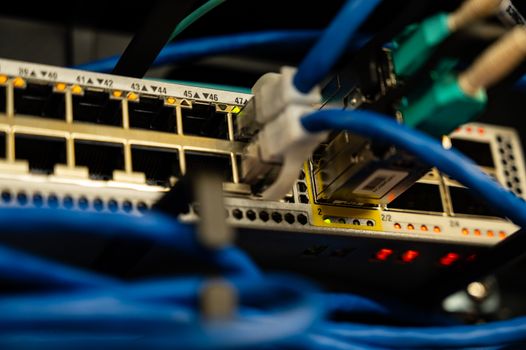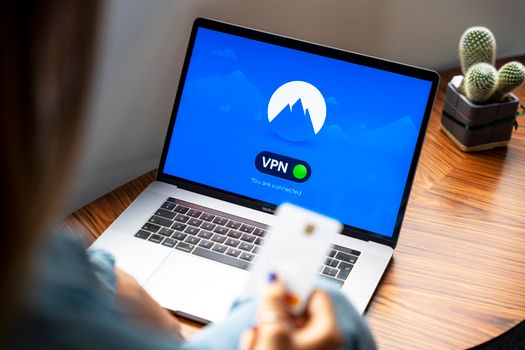
Setting up a Virtual Private Network (VPN) is no longer just for IT professionals or tech enthusiasts. With privacy concerns growing and digital threats evolving, more everyday users are turning to VPNs to secure their internet connections. But the process of installing and configuring a VPN can seem daunting, especially when you have multiple devices—phones, laptops, smart TVs, and even routers. This comprehensive beginner’s guide will walk you through the process of setting up a VPN on various devices, highlight important considerations, and help you make sense of popular VPN options.
Understanding VPNs: What They Do and Why You Need One
A VPN, or Virtual Private Network, is a service that encrypts your internet traffic and reroutes it through a secure server, hiding your real IP address and online activity. This technology is crucial for:
- Protecting your data from hackers, especially on public Wi-Fi. - Preventing your Internet Service Provider (ISP) from tracking your browsing habits. - Bypassing censorship and accessing geo-restricted content.According to a 2023 report by Statista, over 1.6 billion internet users worldwide have used a VPN at least once, and the global VPN market is projected to reach $77 billion by 2026. As VPN adoption grows, so does the variety of devices people use to connect online.
.png)
Preparing for VPN Setup: What You Need to Know First
Before you dive into installation, there are a few key steps every beginner should take:
1. $1 Not all VPNs are created equal. Look for no-logs policies, strong encryption (like AES-256), a wide server network, and apps for your devices. Popular options include NordVPN, ExpressVPN, and Surfshark. 2. $1 Most VPNs support Windows, macOS, iOS, and Android. However, support for Linux, smart TVs, gaming consoles, and routers varies. Confirm that your chosen VPN covers your devices. 3. $1 There are generally three ways to set up a VPN: - Using the VPN provider’s app (simplest) - Manual configuration via built-in device settings - Installing the VPN on your home router for whole-network coverage 4. $1 You’ll need to create an account with your VPN provider and note your login details. For manual setups, you may also need server addresses and security keys, which the provider supplies.Step-by-Step: Setting Up a VPN on Windows, macOS, Android, and iOS
For most users, the easiest method is installing the VPN provider’s official app. Here’s how setup works on the most common devices:
Windows PC or Laptop: - Download the VPN app from the provider’s website. - Install and launch the app. - Log in with your credentials. - Choose a server location and click “Connect.” - You should now see a secure connection notification. macOS (MacBook or iMac): - Find the VPN app in the Mac App Store or on the provider’s site. - Install, open, and log in. - Select your server and connect. - For manual setup, go to System Preferences > Network > Add VPN. Android Phone or Tablet: - Download the VPN app from Google Play Store. - Install and open the app. - Enter your credentials and connect to a server. - Alternatively, go to Settings > Network & Internet > VPN for manual setup. iPhone or iPad (iOS): - Get the VPN app from the App Store. - Log in and select a server. - Tap “Connect.” - For manual configuration: Settings > General > VPN & Device Management.It typically takes less than five minutes per device. Some VPNs, like ExpressVPN, offer a one-click setup with automatic configuration.
VPN Setup on Routers, Smart TVs, and Game Consoles
While installing a VPN on your phone or computer is straightforward, setting one up on a router, smart TV, or game console requires a few extra steps. The benefit? Every device connected to your Wi-Fi gains VPN protection.
Routers: - Confirm your router supports VPN connections (common with brands like Asus, Linksys, or Netgear). - Access the router’s admin panel, usually via a web browser. - Enter the VPN settings provided (server address, username, password, security protocol). - Save and reboot the router. - Now, all devices on your network are secured. Smart TVs: - Some Android TVs support VPN apps directly. Download from the Google Play Store, install, and connect. - For other brands (Samsung, LG), use Smart DNS (offered by many VPNs) or connect via a VPN-enabled router. Game Consoles (PlayStation, Xbox): - Consoles don’t support VPN apps natively. Instead: - Share a VPN connection from your PC or Mac to the console using an Ethernet cable. - Or, connect the console to a VPN-enabled router.Here’s a quick comparison of setup methods by device:
| Device | Direct App Support | Manual Setup | Router Setup |
|---|---|---|---|
| Windows PC | Yes | Yes | Yes |
| Mac | Yes | Yes | Yes |
| Android | Yes | Yes | Yes |
| iOS | Yes | Yes | Yes |
| Smart TV (Android TV) | Yes | Sometimes | Yes |
| Game Console | No | No | Yes (via router) |
Troubleshooting Common VPN Setup Issues
Even with easy-to-use apps, you might run into some common hiccups:
1. $1 Double-check your login details, server address, and internet connection. Switch servers if one is down. 2. $1 Try connecting to a server closer to your physical location. Some VPNs also offer a “fastest server” feature. 3. $1 Some streaming services or websites detect and block VPNs. Change servers or check your VPN’s support for streaming. 4. $1 For older devices or unsupported platforms, consider router-level VPN setup or Smart DNS as alternatives.According to NordVPN, over 70% of connection issues are resolved by switching servers or updating the VPN app.
Maximizing Your VPN Experience: Security and Privacy Tips
Setting up a VPN is just the first step. To get the most from your VPN, keep these best practices in mind:
- $1 This feature disconnects your device from the internet if the VPN drops, preventing accidental data leaks. - $1 Opt for OpenVPN or WireGuard for the best balance of speed and security. - $1 VPN providers regularly patch vulnerabilities; always use the latest app version. - $1 Some VPNs let you choose which apps use the VPN and which don’t—ideal for streaming or banking. - $1 Many providers allow up to 5-10 simultaneous connections. Protect your phone, laptop, tablet, and more under one account.A 2022 GlobalWebIndex survey found that 49% of VPN users cite privacy as their main reason for subscribing, followed by accessing blocked content (31%).
Final Thoughts on Setting Up a VPN Across Your Devices
Learning how to set up a VPN on all your devices may seem intimidating at first, but user-friendly apps and comprehensive support have made the process much easier than it was just a few years ago. Whether you want to protect your browsing on a public Wi-Fi hotspot, stream international content, or secure your entire home network, there’s a VPN solution for you. Start by choosing a reputable provider, follow the step-by-step guides for each device, and don’t hesitate to reach out to customer support if you hit a snag. With a little preparation, you can enjoy a safer, more private internet experience across your digital life.